Hi everyone... Wayne here. Always been interested in marketing, eventually leading me in to doing a Marketing and Business Management course at Oxford Brookes in order to expand my knowledge further and now I work as a content writer at Firepath Digital.
Artificial intelligence (AI) and machine learning are being used in all aspects of business and marketing. The technologies allow decision-makers to extract valuable insights from a large amount of data so businesses can stay on top of emerging trends.
In this blog, I’ll cover how you can leverage AI to help increase ROI and get better results.
What AI Can Do For Content Marketers
AI is an umbrella term to describe a suite of unique, but related, technologies that includes machine learning, deep learning, neural networks, natural language processing (NLP), and natural language generation (NLG). With the ability to process an enormous amount of unstructured data and decipher natural language, AI is used to extract insights and make recommendations based on previously established criteria.
It aids content marketers in discovering keywords, planning blog post topics, optimizing and personalizing content, implementing automation, testing landing pages, scheduling social shares, and reviewing analytics. AI has become an indispensable tool for data-driven marketers because we have more data than we know what to do with. The success of our efforts hinges upon the ability to extract the right insights from the data we already have, e.g., on our ecommerce, CRM, or DMP platforms.
Here are a few ways AI can be leveraged by content marketers:
Narrow the Content Discovery Gap
Producing content is just one part of content marketing. In order for the content to be effective, it needs to drive the right action from the right audience through content curation and maintenance. No wonder 67% of marketers indicate audience identification and targeting as their top priority. You can leverage AI to get your content discovered and acted upon by the right audiences using strategies such as capitalizing on local demand, gauging topic opportunity sizing, and determining consumer intent.
For example, AI tools can help discover characteristics of top-ranking content and offer real-time recommendations on how to improve content performance. In addition, you can use predictive intelligence to deliver content in the right format and through the right channel, that’ll be most useful and engaging for each individual along the various stages in the buyer’s journey. This capability allows marketers to fully leverage the power of personalization and marketing automation technologies to deliver targeted content to each prospect or customer and increase the ROI of their content marketing efforts.
Create Content Of High Value
Most content creation efforts are educated guesswork: marketers make assumptions on what will be of great demand based on past information and their subjective understanding of the market. AI can guide marketers to craft content that’s of greater value to the audience by analyzing and strategizing pertinent keywords and schematics in real-time to enhance a piece of content’s discoverability and engagement.
You can use AI to identify trending topics by using algorithms to track conversations on the Internet, such as those occurring on social media and within published content, to help you stay ahead of the trends and create content that will lead the conversations. By removing the guesswork, more of your marketing budget can be optimized to create and promote relevant content that will attract the right audience and deliver the desired results.
Stay On Top Of Industry Changes With Smart Content
Content marketing best practices are evolving all the time thanks to the constantly changing SEO and social media algorithms, as well as consumer expectations and preferences. The use of AI solutions helps marketers quickly adapt to the ever-changing search landscape with the delivery of “smart content”—content that’s contextually appropriate and intelligently personalized to your customer’s needs.
The use of “smart content” tailored specifically to each prospect’s customer lifecycle stage, purchasing history, or browsing behavior means you can fully leverage the power of omnichannel marketing by delivering personalized communications through all touch points including website, email, social media, mobile app, and more.
Intelligently Automate Repetitive Tasks
To stay on top of search and marketing trends, you need to constantly evaluate and analyze a lot of data. Many of these repetitive and manual tasks can be automated using AI-powered marketing tools so you can plan, optimize, personalize, promote, measure, and analyze content and its performance.
Start by evaluating your current content marketing process and identifying tasks that can be automated with AI technologies to save time and money. For instance, the ability to identify the best topics and content format based on real-time data can free up your resources to focus on content creation. You’ll be able to keep your key strategic documents up-to-date and generate high-impact topics that will make outsourcing your content creation tasks much more cost-effective.
Maximize Opportunities To Leverage Insights From Your Data
Using the right data, you can extract the right insights to help predict outcomes, devise strategies, personalize content, and tell stories at scale. However, there’s no one-size-fits-all answer to what the highest-impact insights are for your organization and content marketing needs.
The best way to maximize opportunities offered by your data is to work with internal stakeholders and owners of datasets to extract the most pertinent insights and strategize the appropriate actions.
Use the AI Capabilities Of Your Existing Marketing Platforms
Before you add new software to your arsenal, you should look at the AI capabilities of your existing tools. Many platforms are actively integrating AI into their existing offerings.
Leveraging the AI features in your current tools will not only give you a great starting point to familiarize yourself with the technology, but you’ll also be able to take advantage of the seamless integration that’ll allow you to get up and running faster and more cost-efficiently.
Conclusion
By 2018, 62% of enterprises are expected to be using AI technologies. As a marketer, it’s time to embrace artificial intelligence if you want to stay at the top of the curve, remain relevant, and continue to engage your audience in a meaningful and profitable way.
A hanging indent is when the second and subsequent lines of text on a page are indented to the right, so your first line stands out as the only line hitting the margin of the page. Typically, you’d use a hanging indent in a bibliography, Works Cited, or References page.
Here’s an example of a hanging indent on a Works Cited page:
See how the second line, beginning with “Journal”, is indented 0.5 to the right, compared to the line above it? That’s a hanging indent.
Hanging indents are a requirement of MLA (Modern Language Association), CMS (Chicago Manual of Style), and APA (American Psychological Association) styles. Whether you’re in school or work in the academic field, it’s likely you’ll eventually need to know how to create a hanging indent for academic writing or research reports.
Luckily, it’s easy to do. Here, we’ll show you how to create a hanging indent in a Google Doc in four simple steps.
How to Create a Hanging Indent in Google Docs
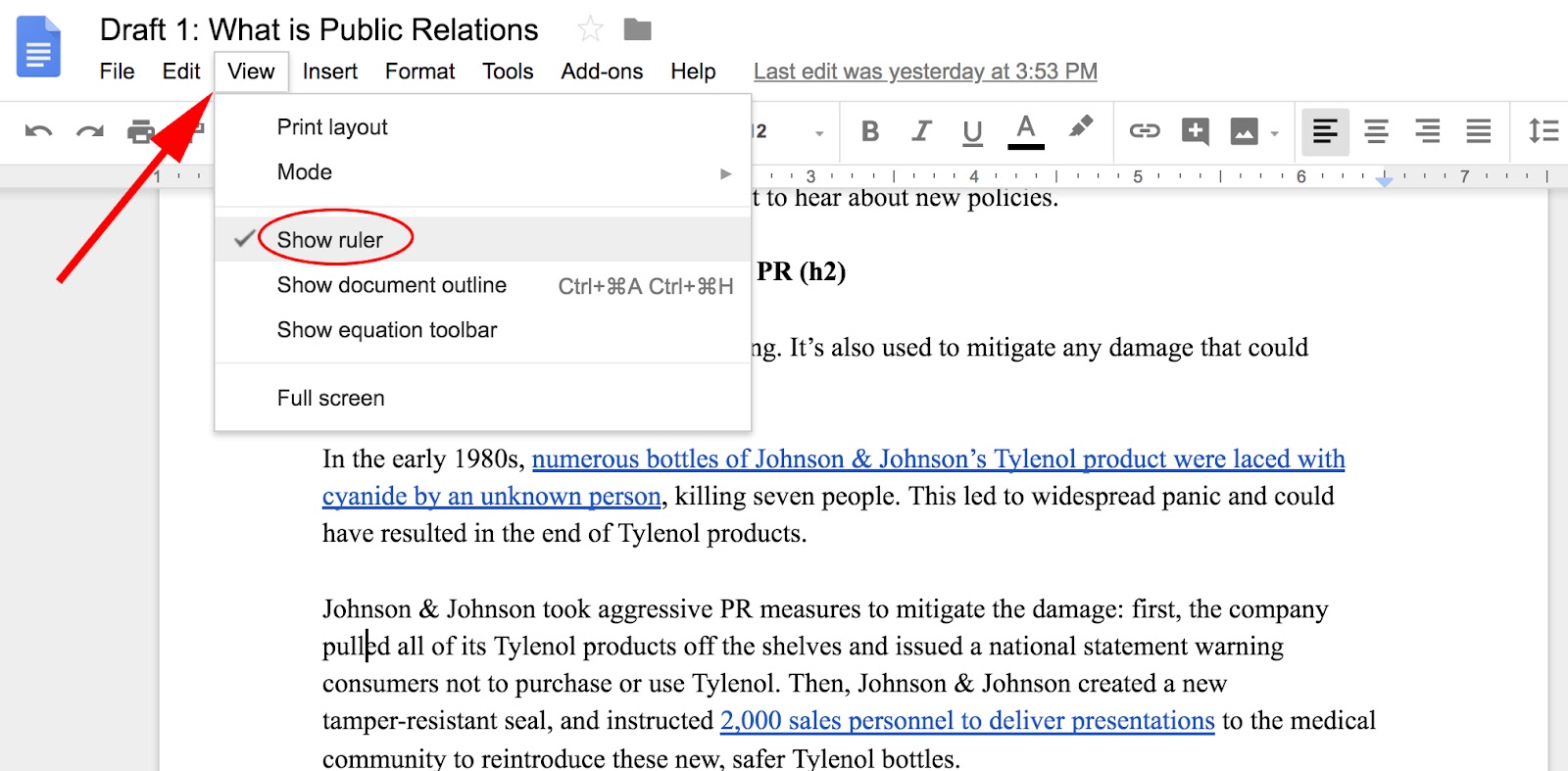
To create a hanging indent in Google Docs, you’ll need to first make sure your ruler is visible. A ruler is the measurement tool at the top of your Doc, used to help align text, graphics, tables, and other elements. To make your ruler visible, simply click “View” in your navigation bar, and make sure “Show Ruler” is checked.
Now that your ruler is visible, you’re ready to create a hanging indent.
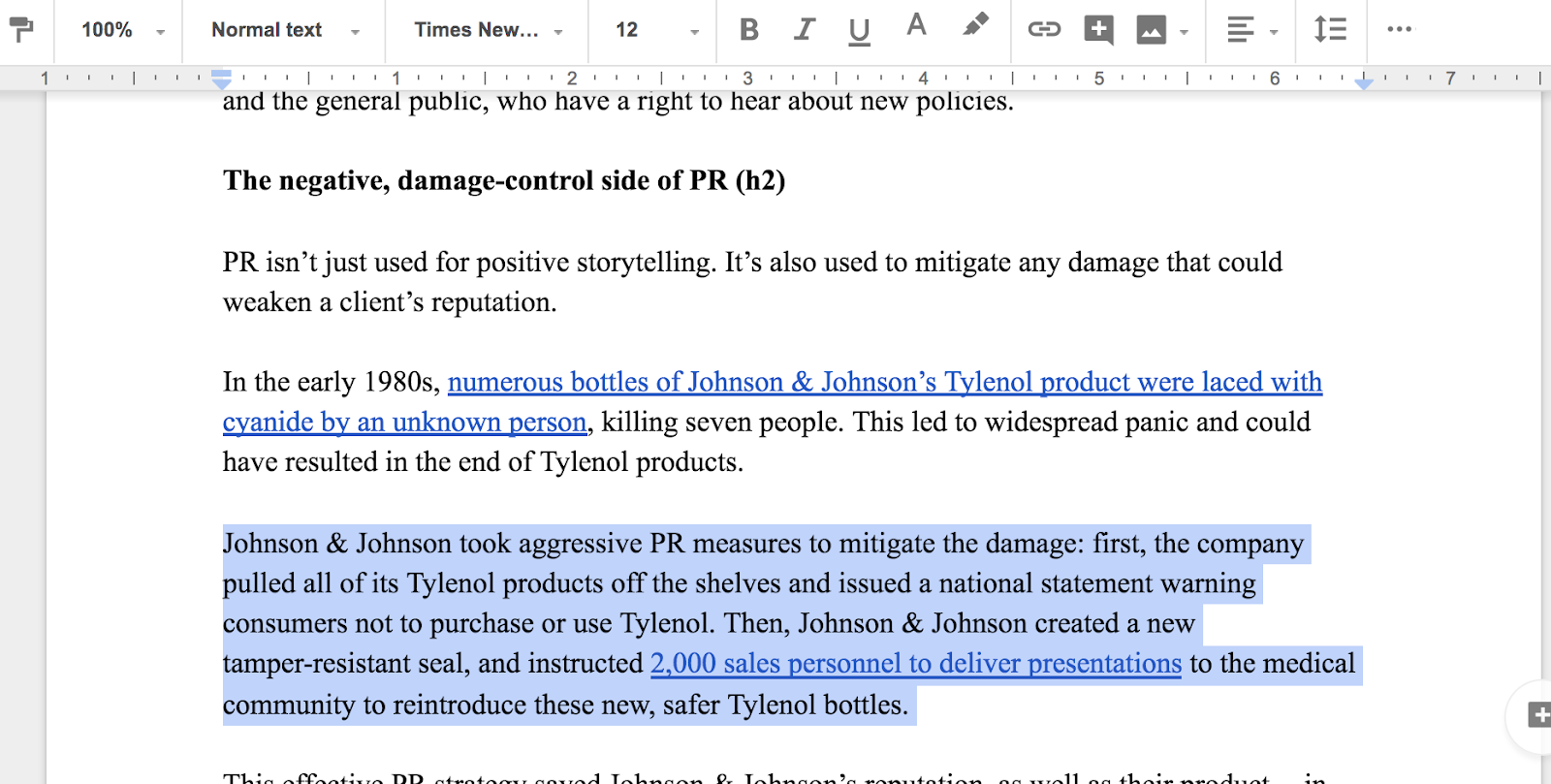
1. First, select the text you want to indent. You can highlight one or multiple paragraphs.
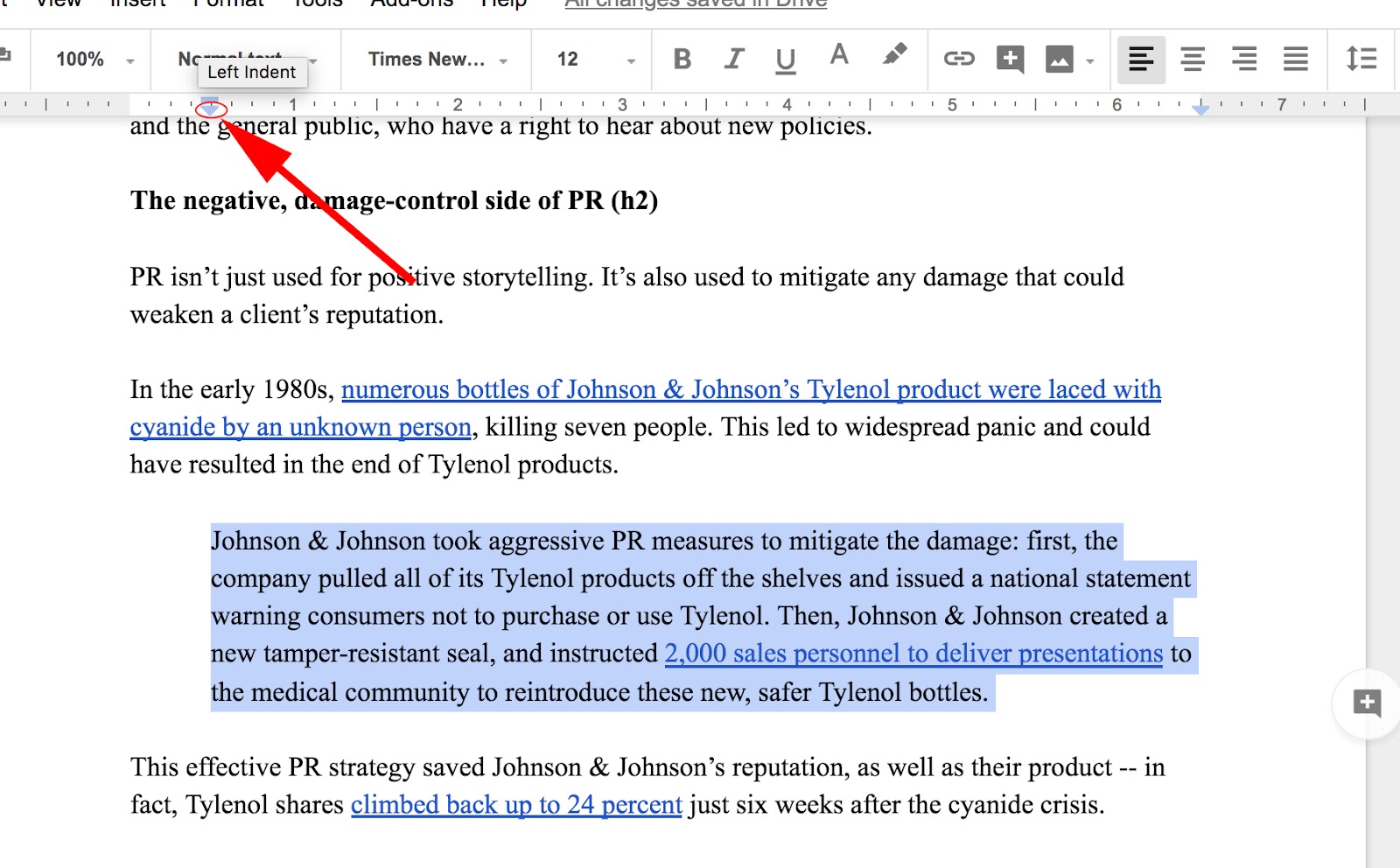
2. Now, drag the left indent marker (the small light blue inverted triangle, which we’ve circled in red on the screen) to the right, stopping wherever you want your hanging indent to begin -- the rectangle will come along for the ride, which is okay.
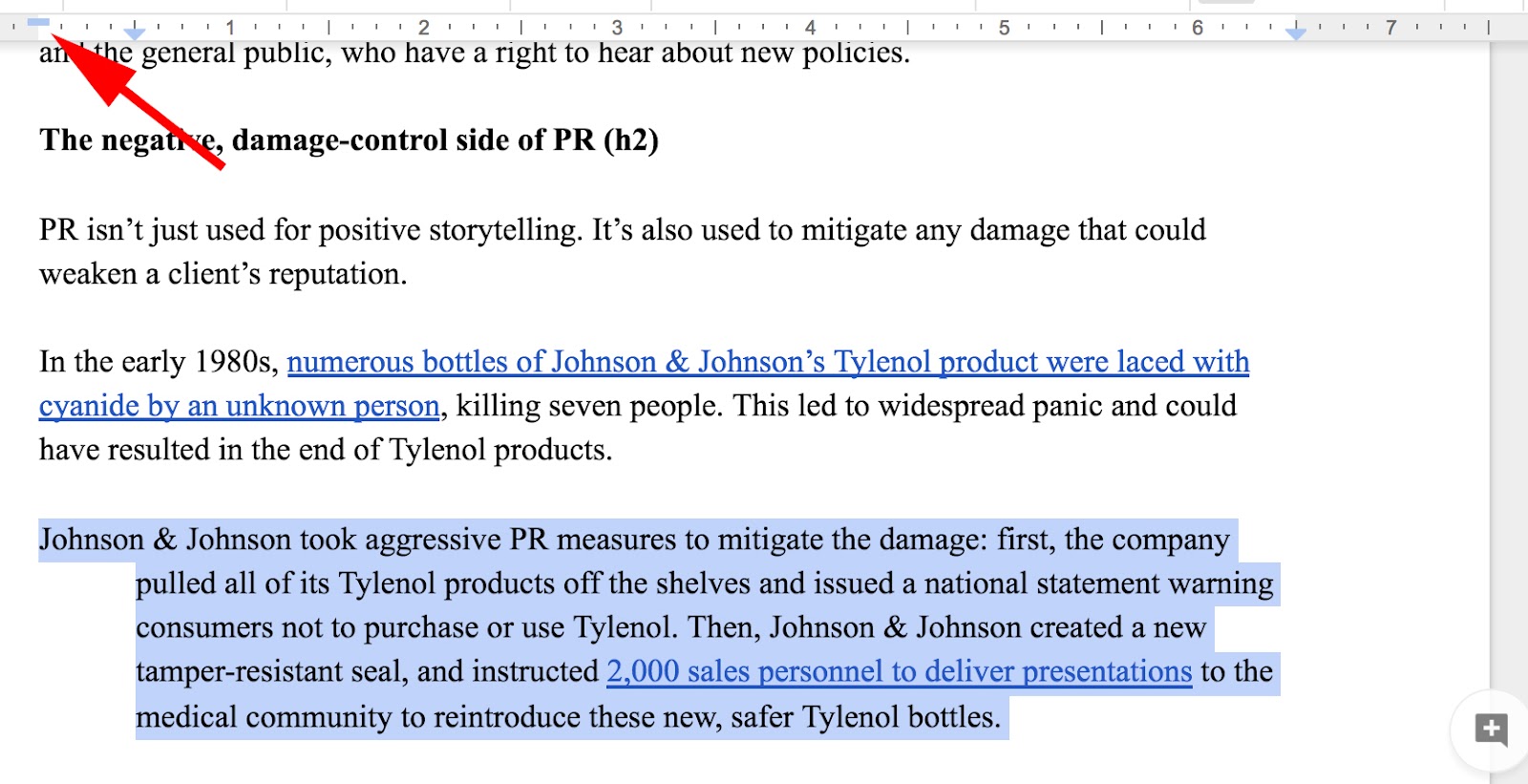
3. Now, drag the First Line Indent marker (the light blue rectangle) back to the left margin.
4. And there you go! Your hanging indent is created.
from Marketing https://blog.hubspot.com/marketing/hanging-indent-google-docs
GMB is a free tool that lets you manage how your business appears on Google Search and Maps. That includes adding your business name, location, and hours; monitoring and replying to customer reviews; adding photos; learning where and how people are searching for you, and more.
If you're just getting started with local SEO, your Google My Business listing is a great place to focus your early efforts. After all, when people search for a product or service near them, they're usually very close to making a purchase -- one in two people who conduct a local search (think "watch repair near me") visit a store that day. So it's important the information about your business that shows up when people search Google is as accurate, complete, and optimized as possible.
To learn how to create your Google My Business account, verify your business, and make its listing as strong as possible, read on.
GMB is completely free to use. The only requirement for using it is that you must have some face-to-face interaction with your customers -- in other words, you can’t operate 100% online.
Create a Google My Business Listing
Step 1: Log into the Google Account you want associated with your business (or create a Google Account if you don’t already have one).
Step 2: Go to google.com/business and select “Start now” in the top right-hand corner.
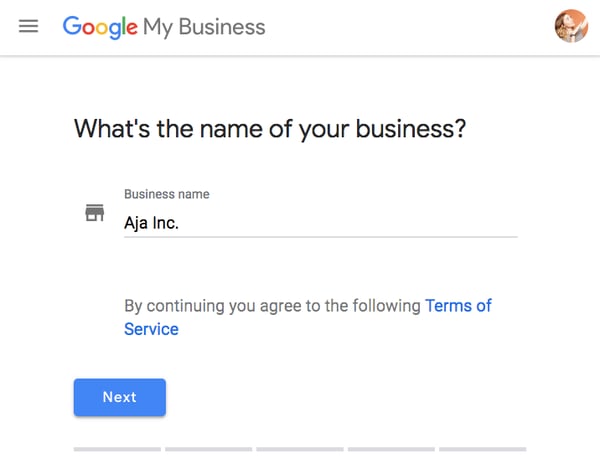
Step 3: Enter your business name.
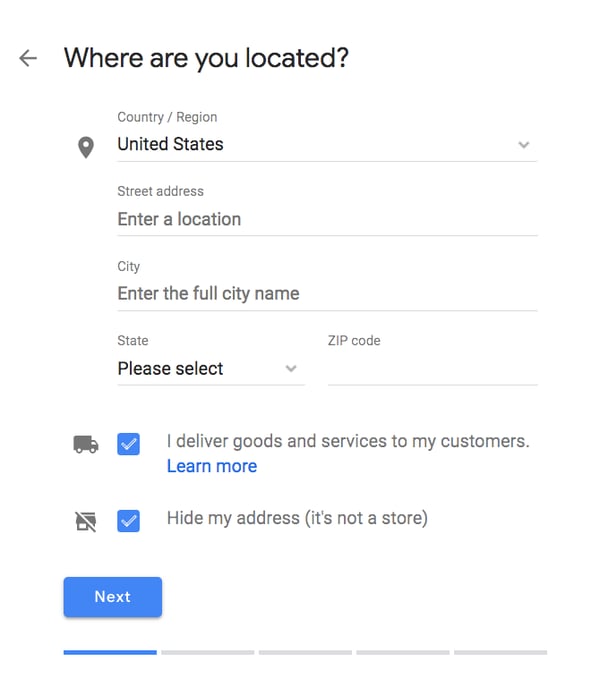
Step 4: Enter your business address.
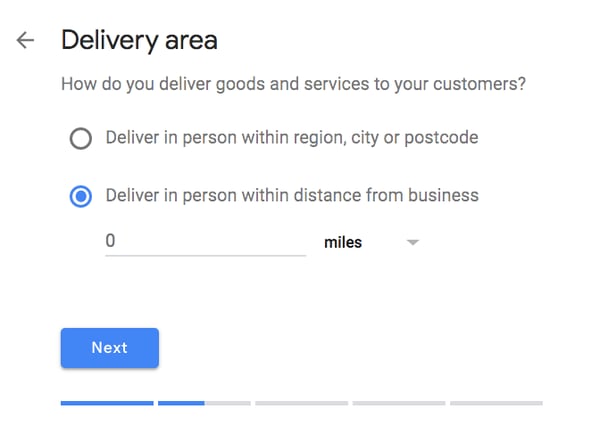
Step 5: If you go to yourcustomers’ locations, rather than having them come to you, check the box “I deliver goods and services to my customers.” And if you work out of your house or another address you don’t want publicly shown, Check “Hide my address (it's not a store) Only show region.” Finally, select your Delivery area.
Step 6: Choose your business category. Try to choose the most accurate category possible -- you’re essentially telling Google which type of customers should see your business listing.
Step 7: Add your business phone number or website.
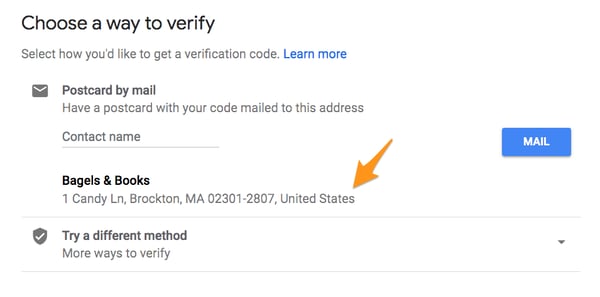
Step 8: Choose a verification option. If you’re not ready to verify your business yet, click “Try a different method” → “Later.”
How to Verify Your Business on Google
There are several ways to verify your GMB listing:
By postcard
By phone
By email
Instant verification
Bulk verification
Postcard Verification
Step 1: If you aren't already logged into Google My Business, sign in now and choose the business you want to verify. (If you're already logged in, you'll be at the verification step.)
Step 2: Make sure your business address is correct. Optional: Add a contact name -- that's who the postcard will be addressed to.
Step 3: Click "Mail." The postcard should reach you in five days -- make sure you don't edit your business name, address, or category (or request a new code) before it comes, because this could delay the process.
Step 4: Once you've gotten the postcard, log into Google My Business. If you have more than one business location, select the location you want to verify. If you only have one, select "Verify now."
Step 5: In the Code field, enter the five-digit verification code on your postcard. Click "Submit."
If your postcard never shows up, or you lose it, you can request a new code by signing into Google My Business and clicking the "Request another code" blue banner at the top of the screen.
Phone verification
Google lets some businesses verify their location by phone. If you're eligible, you'll see the "Verify by phone" option when you start the verification process.
Step 1: If you aren't already logged into Google My Business, sign in now and choose the business you want to verify. (If you're already logged in, you'll be at the verification step.)
Step 2: Make sure your phone number is correct, then choose "Verify by phone."
Step 3: Enter the verification code from the text you receive.
Email verification
Google lets some businesses verify their location by phone. If you're eligible, you'll see the "Verify by email" option when you start the verification process.
Step 1: If you aren't already logged into Google My Business, sign in now and choose the business you want to verify. (If you're already logged in, you'll be at the verification step.)
Step 2: Make sure your email address is correct, then choose "Verify by email."
Step 3: Go to your inbox, open the email from Google My Business, and click the verification button in the email.
Instant verification
If you've already verified your business with Google Search Console (a free tool that lets you manage your website's search performance and health), you might be able to instantly verify your email.
Step 1: Sign into Google My Business with the same account you used to verify your business with Google Search Console. (Some business categories aren't eligible for instant verification, so if you don't get a notification asking you to verify the listing, you'll have to use a different verification method.)
Bulk verification
If you operate more than 10 locations for the same business -- and you're not a service business or an agency managing locations for multiple businesses -- you might be eligible for bulk verification.
Step 1:If you aren't already logged into Google My Business, sign in now and choose a location. Click "Get verified" next to its name.
Step 2: Click "Chain."
Step 3: Fill out the verification form with your business name (as well as the parent company, if applicable), country or countries where you operate, all contact names (i.e. everyone who will be using the Google My Business account), contact phone number, business manager email (someone at the business who can verify you're a representative of that business), and the email address of your Google Account Manager.
Step 4: Submit the verification form. It can take up to a week for Google to review and process your claim.
How to Optimize Your GMB Listing
Once you've verified your business, it's time to finish fleshing out your profile.
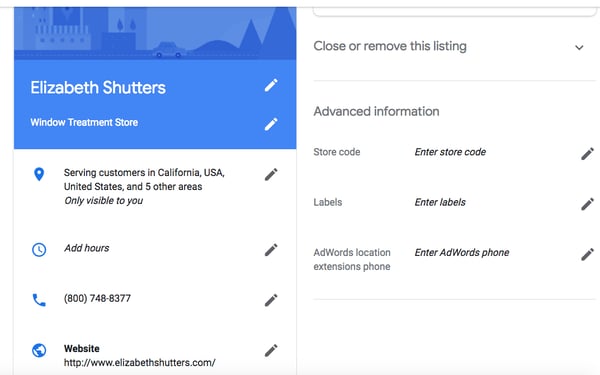
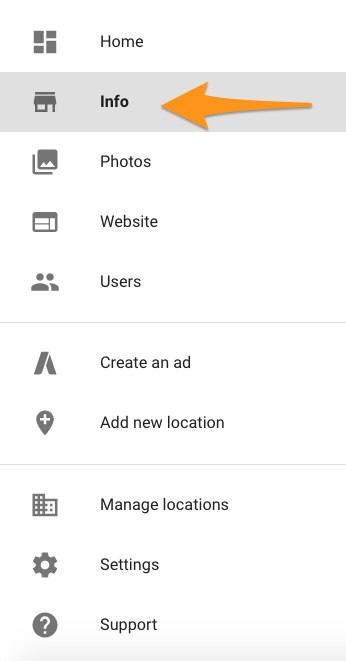
Go to the Google My Business dashboard, click the listing you'd like to work on, select "Info," and then choose a section to fill out or update.
Add as much information and media as you can, including a business profile photo, the area you serve, your hours, attributes (e.g. "wheelchair accessible," "free wifi"), the day and year you opened, and a public phone number and website URL.
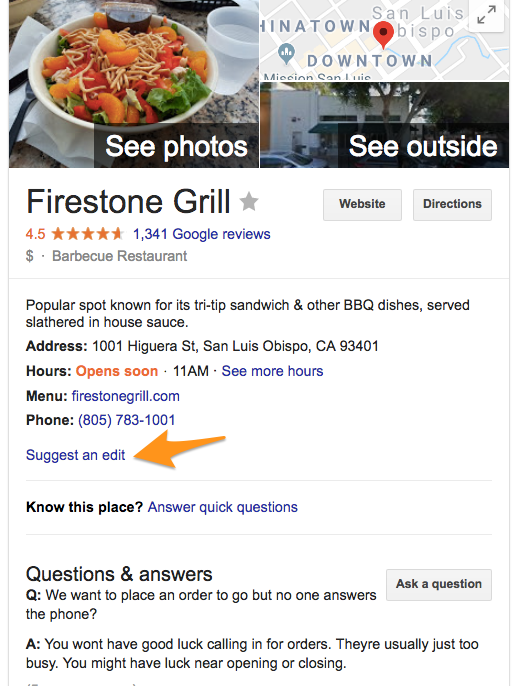
Anyone can "suggest an edit" to your listing, so it's important to A) get everything right the first time (so you don't encourage random people to make their own changes) and B) periodically log into your GMB dashboard and make sure all the details look right.
At any point in time, you can edit your business profile by logging into your GMB dashboard, clicking on "Info," clicking the pencil next to the field you'd like to edit, making your change, and then choosing "Apply."
Photos should be at least 720 pixels wide by 720 pixels high and JPG or PNG files.
Not sure how many pictures to add -- or what they should be of?
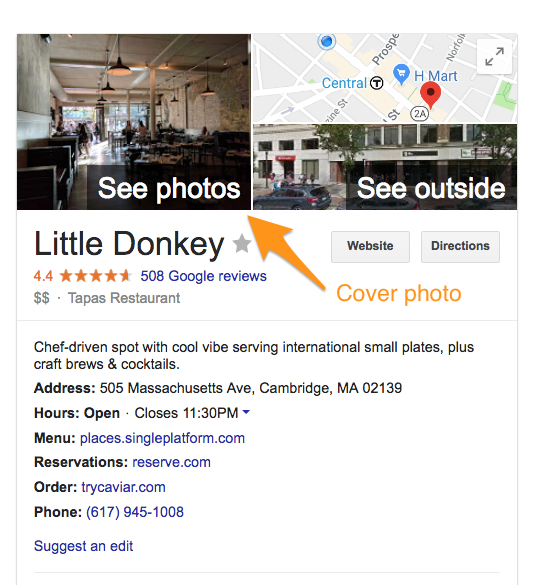
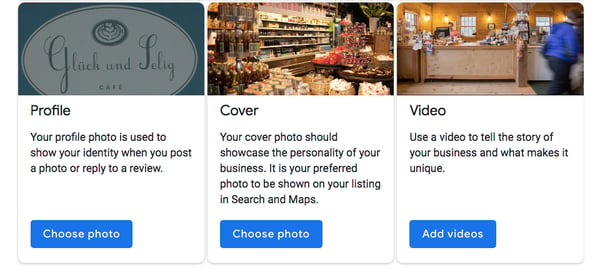
Cover photo
Your Google My Business cover photo is one of the most important, as it shows up front and center on your listing.
Profile photo
Your profile photo is what appears when you upload new photos, videos, or review responses.
Along with your profile and cover photos, you can and should upload other pictures to make your listing more informative and engaging.
Type
Description
Google-recommended minimum
Suggestions
Exterior
The outside of your business from different directions.
Three photos
Use pictures from different times of day (morning, afternoon, evening) so customers always recognize your business.
Interior
The inside of your business, with a focus on decor and ambiance.
Three photos
Give customers an accurate idea of what it will look like to stand or sit inside your business.
Product
A representation of the types of products or services you offer.
One photo per product type or service
Show the products you're known for and make sure the photos are lit well.
Employees at work
"Action" shots of your employees delivering the types of services you offer.
Three
Try to capture your employees with satisfied customers.
Food and drink
Pictures that represent your most popular menu items.
Three
Consider hiring a food photographer -- these are tricky to get right! If that's not in the budget, use bright, even lighting (i.e. no shadows or dimness).
Common areas
Photos of where your customers will spend time (think a lobby or lounge).
One photo per common area
Represent the variety of amenities you offer.
Rooms
Pictures of your different room and suite options (if applicable).
Three
Don't try to mislead guests -- show your wallet-friendly and high-end options.
Team
A shot of your management team and staff.
Three
Use pictures that show your unique culture and team personality.
Google My Business Videos
You can also add videos. Videos must be:
30 seconds or shorter
100 MB or smaller
720p resolution or higher
Videos can add some variety to your profile and make you stand out among other businesses in your category; however, don't worry if you don't have any -- unlike photos, they're not a "must have."
Google My Business Reviews
One of the best ways to encourage future customers to leave positive reviews? Respond to current ones. Not only does leaving an appreciate response show the original reviewer you're thankful for their support, it also makes that positive review stand out on your listing and influences people to leave their own reviews.
Here's a sample reply to a satisfied customer:
Thank you for your business, [name]! We're so glad you enjoyed [product, e.g. "the blueberry pie"] -- it's one of our favorites, as well. Hope to see you back at [business name] soon.
You should also respond to negative reviews to show you take them seriously and placate the unhappy buyer. But make sure you're extremely courteous -- attacking them back will only make you look unprofessional and their review more credible.
Thank you for the feedback, [name], and I'm incredibly sorry [product/experience] did not meet your expectations. [If you've made a change, mention it here -- e.g., "We're now double-checking orders to make sure everyone gets exactly what they asked for."] If you'd like to come back in, we'd be happy to give you [product] on the house. In any case, thanks for your business, and I hope we can do better next time.
Google My Business App
Google My Business is also available in app form for bothiOSandAndroid.
You can use the app to:
Update your business hours, location, contact information, and description
Post statuses and pictures
View search insights
You cannot use the app to:
Delete your business listing
Change its settings
Give ownership of the listing to another user
Google My Business vs. Google Places for Business vs. Google+
If you're confused about the many names and options for managing your Google presence, you've got a right to be. Google Places used to be Google's tool for owners to manage their business profiles, but it was retired in 2014. Now Google My Business is the central hub to manage how your business appears on Google Search, Maps, and Google+.
So, what's Google+? It's Google's social network (the closest example is probably Facebook). You can join or start Communities -- public or private groups organized around a theme, like Knitting -- and follow or create Collections -- think Pinterest boards.
A Google+ account for your business lets you interact with niche groups and post pictures and updates. In other words, it's like a Facebook page for your business. You can access your Google+ account from your Google My Business dashboard (but a Google+ account isn't necessary to have a GMB account).
Here's the TL;DR:
Do you need a Google+ account? No -- and if you're short on time, it might be better to focus on other marketing and/or social media channels.
Do you need a Google My Business account? If you're targeting local customers, I highly recommend it.
from Marketing https://blog.hubspot.com/marketing/google-my-business
Like many marketers, I have a bit of experience with Microsoft Excel. I've used it to organize events, plan meals, and sort data -- but I don't have nearly the advanced knowledge I wish I did.
And thanks to those limited skills, I'm constantly subjecting myself to the tedium of updating my spreadsheets manually.
I'm well aware that I'm missing out on a world of Excel training courses that could teach me how to automate my reports and save hours of time.
When I asked even my most Excel-savvy colleagues where they picked up their knowledge, they told me things like, "I mostly learned from colleagues and friends," or, "When I have a specific question, I ask someone or search on Google." Fair enough. But as a beginner, I probably have a few too many Excel questions to rely on colleagues -- or Google -- to answer every one.
I can't be the only one out there who wants to master the world's most popular data analysis and visualization solution -- or at least learn how to create charts and graphs that'll impress my manager.
So in the spirit of becoming a more productive, data-driven marketer, I scoured the internet for the best online resources for learning Excel. Most of these are free, and the ones that aren't might be worth the investment.
Take a look, bookmark your favorites, and get that much closer to working more efficiently in Excel.
How to Learn Excel for Free Online
1. Microsoft's Excel Training Center
Price: Free
When it comes to learning a new application, why not start at the source? After all, no one knows Excel better than the people at Microsoft.
In fact, they've done a great job putting together the Office Training Center: A resource hub for all Microsoft Office applications and services. The training center for Excel has a whole bunch of free tutorials, videos, and guides on Windows, Mac OS, Android, iOS, and Windows Phone that cover the latest version of Excel, as well as older ones.
Once you click into a platform, you'll find resources divided by Excel ability: For beginners (like basic math and creating a chart), intermediate users (like sorting and filtering data, conditional formatting, and VLOOKUPs), and advanced users (like pivot tables, advanced IF functions, and how to password-protect worksheets and workbooks).
Here's a very well-organized site that's chock full of helpful Excel tips, collected by an expert named John Walkenbach. Over the past 30 years, he's written more than 60 Excel books for users of all levels, and around 300 articles and reviews for magazines like InfoWorld, PC World, and PC/Computing. At one point, he wrote the monthly spreadsheet column for PC World. In other words, the man knows his stuff -- and he knows how to present it.
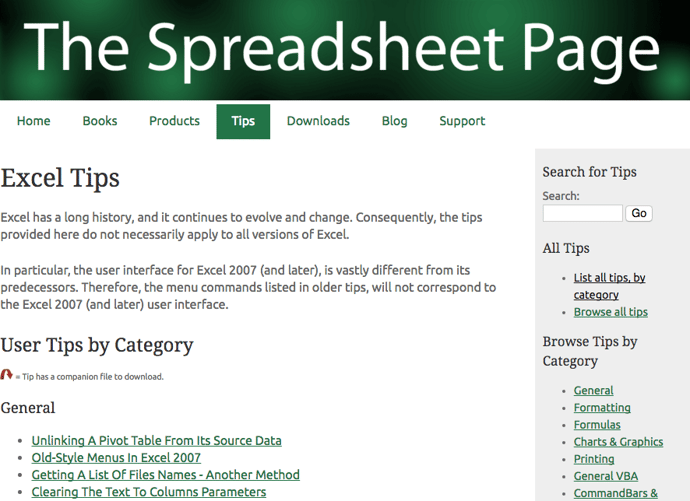
The most helpful part of his website is probably the Excel Tips tab, which has a long list of useful pointers on formatting, formulas, charts and graphics, and printing. The tips themselves include everything from working with fractions, to unlinking a pivot table from its source data, to spreadsheet protection FAQs.
The Downloads tab is another particularly helpful section of Walkenbach's site, where he's added free, ungated download links to files he created, like free Excel workbooks and add-ins. For example, there's one Excel workbook available for download that gives examples of custom number formats, which you can play with and tweak on your own time, and get familiar with them without having to start from scratch.
3. About.com's Spreadsheets Page
Price: Free
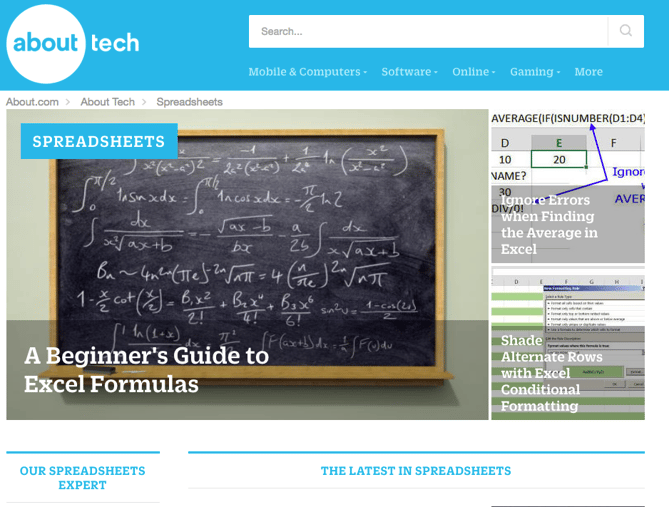
Many of you are likely familiar with the content website About.com, but did you know it has its own spreadsheets subdomain -- much of which is devoted to Excel? There are likely thousands of instruction sets on that site, most of which are illustrated, how-to posts. Plus, fresh content is added regularly.
Each piece of content is categorized according to everything from formulas and formatting, to videos, tools, and templates. If you want to stay up-to-date on the latest spreadsheet news and tips, you can sign up for a free newsletter. There's just one caveat: the site contains a good amount of ads -- but if you can stand them, the content is worth it.
4. Chandoo.org
Price: Free
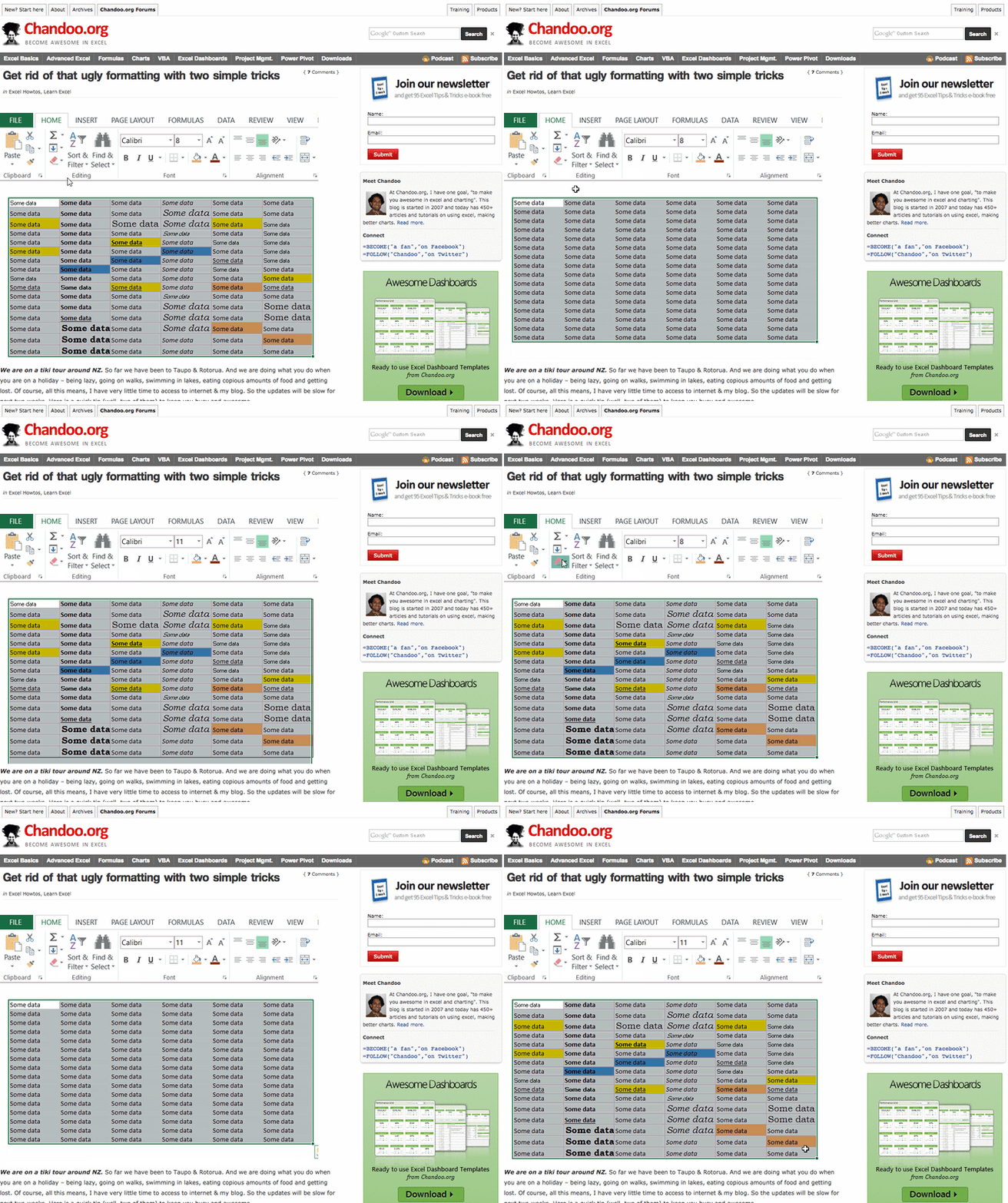
Purna "Chandoo" Duggirala, Chandoo.org's founder, says he has one goal: "to make you awesome at Excel and charting." He started the blog in 2007 and, today, it contains more than 450 articles and tutorials on using Excel and making better charts. He's built the blog as a community, citing values like humility, passion, fun, and simplicity.
He also works to make it a valuable resource for the folks for whom English is not their first language.
Most of his tips stem from forums, where people ask questions about Excel -- about formulas, formatting, shortcuts, pivot tables, and so on -- and anyone can answer them. Chandoo then uses some of the more helpful forum questions to create articles and tutorials.
But it's not all so formal. For example, Chandoo once created a digital Easter egg hunt for a blog post, which included a downloadable Excel workbook containing seven hidden pandas. Readers were challenged to locate the pandas using clues, Excel techniques, and even "I-Spy" skills.
While the articles, forums, and other parts of the site are free, you can pay to join one of Chandoo's structured training programs, like Excel School ($97 - $247), or VBA Classes ($97 - $347). Plus, there's aways the option to buy one of his books -- The VLOOKUP Book or Excel Formula Helper Ebook.
5. HubSpot Excel Reources
Price: Free
Seeing as Excel is one of the most in-demand skills for data-driven marketers -- and because we want marketers like you to succeed -- we've created some of our own educational content about Excel here at HubSpot. From free ebooks, to templates, to video tutorials, we aim to cover a wide range of Excel-relevant topics.
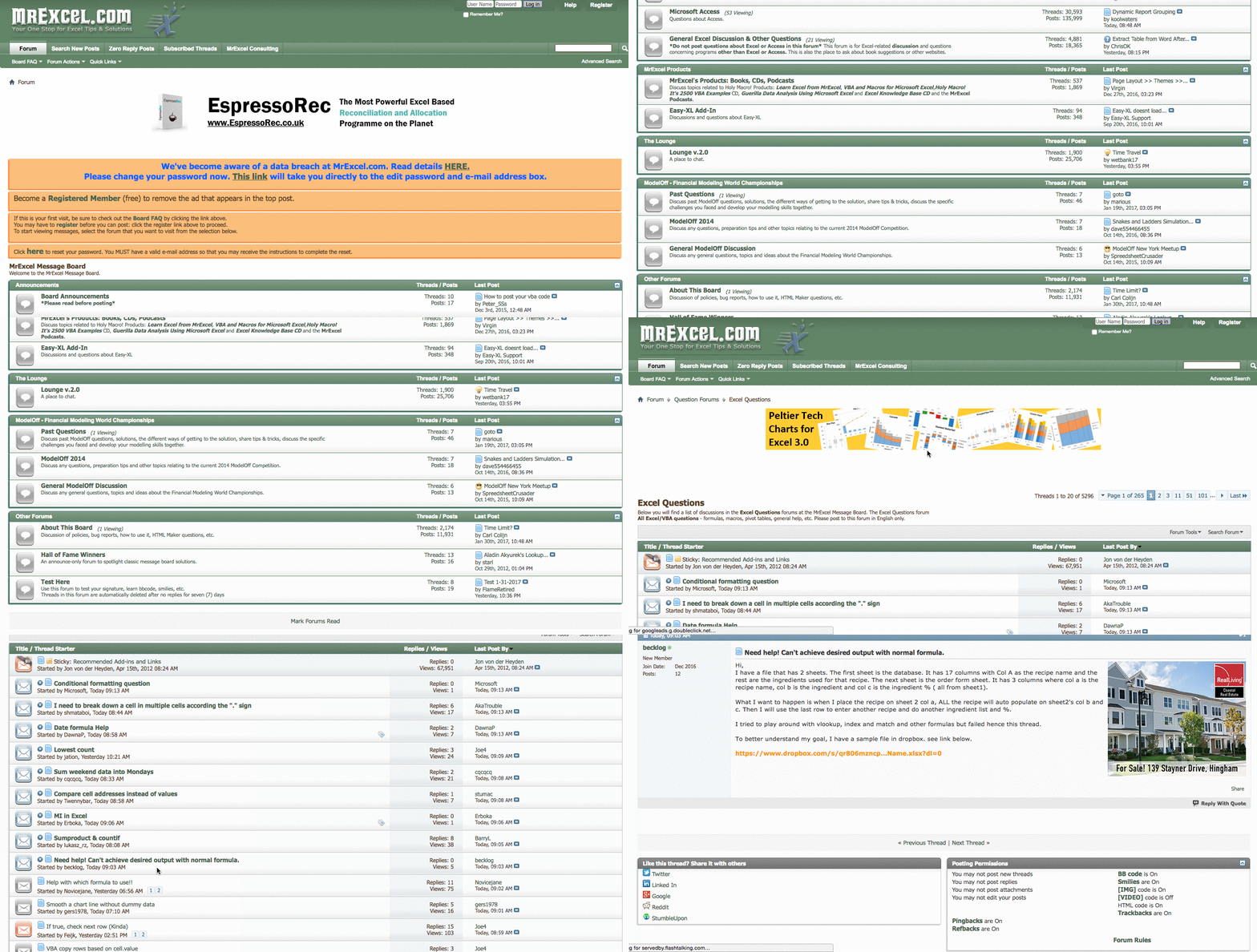
Here's a resource that puts we mere mortals in touch with Excel experts. MrExcel.com's claim to fame is its interactive message board, which is constantly monitored by its community of Excel gurus.
The board is organized according to subject, like general announcements, questions, and MrExcel.com products. When a user posts a question, a member of the MrExcel.com expert community will reply with an answer. The questions range from simplifying an Excel task, to solving urgent inquiries.
Aside from posting questions on the message board, you can also browse Mr. Excel's "Hot Topics" -- found on the left-hand side of its homepage -- which includes things like finding the cumulative sum of even or odd rows, or removing the leading zero within a text field. The site also has a library of helpful Excel books and ebooks, and if you need help with problems that are more complex, you can even hire an Excel consultant directly from the website, for a fee.
7. EdX Excel Courses
Price: Free
Here's a budget-friendly option for those in search of a more formal course, rather than a one-off tutorial: EdX is a nonprofit that provides free education for people around the globe -- with an interesting model of Excel training sessions, both timed and self-paced.
When users enroll in a course that's marked as "Verified," they have the option to pay a fee in exchange for an instructor-signed certificate with the institution's logo, to verify the achievement and increase job prospects. Those fees are used to fund the courses, giving you the option to take them for free if you don't mind foregoing the certificate.
Otherwise, there are some courses offered at a "Professional Education" level, for which the fee isn't optional. One example is the Business and Data Analysis Skills course, offered for $60.
To help you choose the right one, each edX course includes reviews (with a rating up to five stars), and information on length and amount of effort, usually measured in hours per week. There are also details on the level of knowledge required, along with video transcripts.
8. Annielytics Video Tutorials
Price: Free
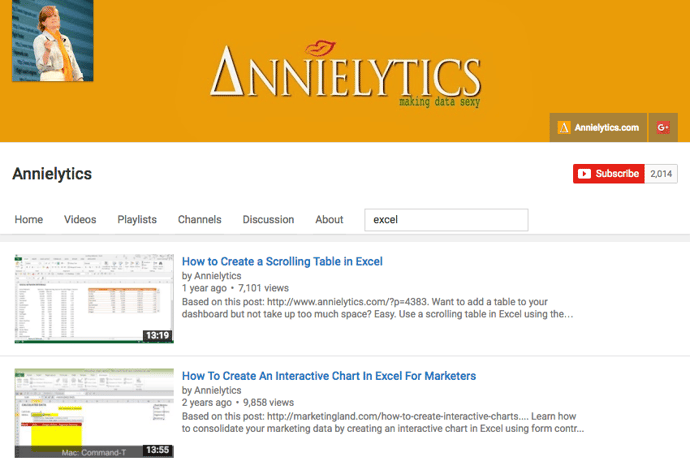
Annie Cushing, a web analytics data expert, created the Annielyticsblog and YouTube channel to share her knowledge with the world. Don't let the punny name fool you -- both are chock full of really good, specific, and in-depth web analytics tips.
While the content here isn't all Excel-related -- much of it is about Google Analytics, for example -- it does contain some great Excel video tutorials. Even better, they were created with marketing and web analytics in mind, so they're directly applicable to things like marketing data reports. The Excel-specific videos can be found here, or by searching her YouTube channel for "Excel".
The Excel topics vary widely, from how to create interactive pivot tables, to how to add a scrolling table to your dashboard using the INDEX function. The videos also vary in length depending on topic complexity, ranging from two-and-a-half-minutes, to those over half an hour long. To give you an idea of what the videos are like, here's one of our favorites, which covers a comprehensive overview of Excel charts:
9. Khan Academy
Price: Free
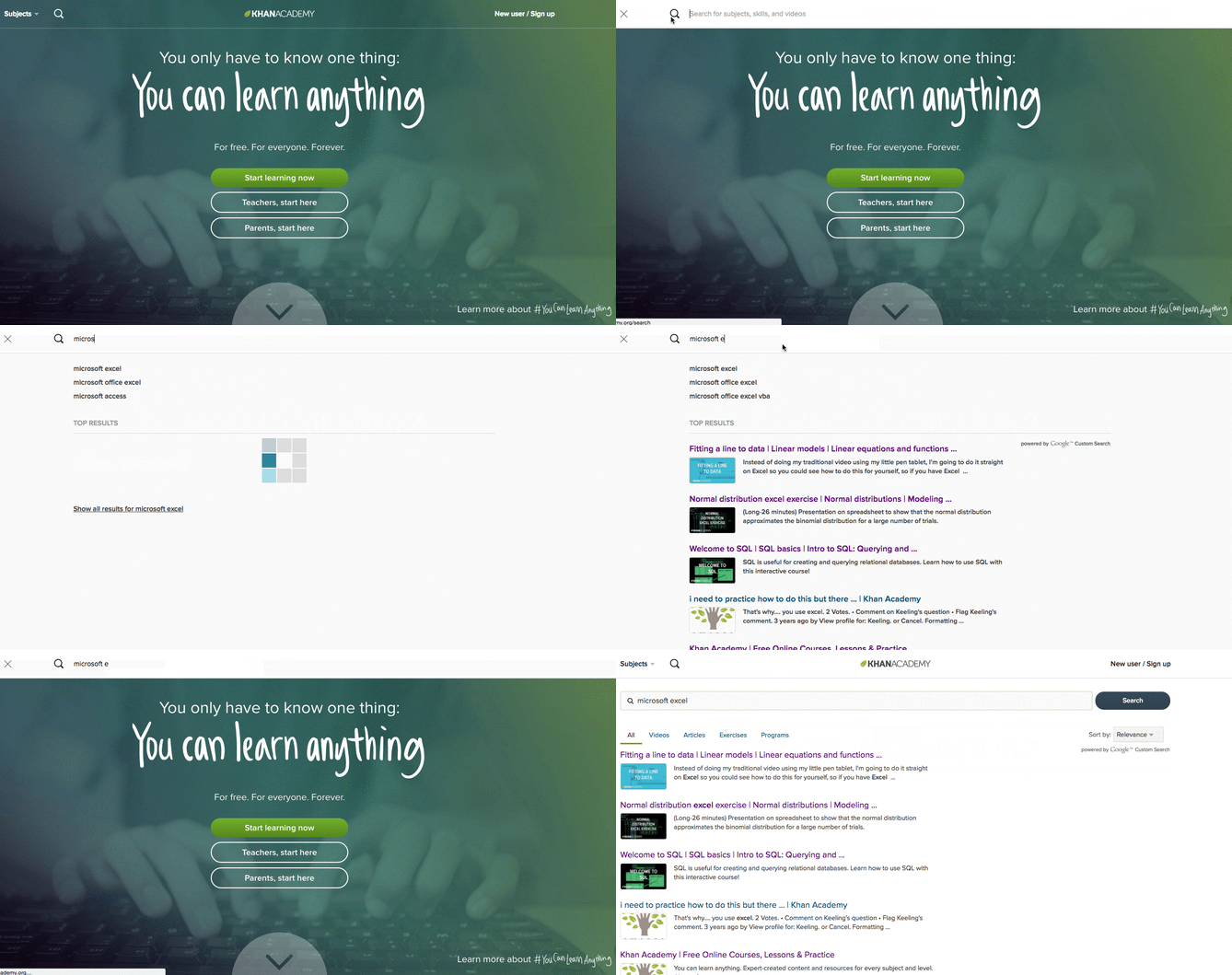
When visitors arrive at the Khan Academy website, they're greeted with two simple but powerful lines of text: "You only have to know one thing: You can learn anything." And from algebra to astronomy, this resource offers a plethora of free courses on, well, almost anything -- for free.
That includes a few video tutorials on Excel. Most of them are part of larger, multi-installment courses on broader topics, like statistics. A general search for "Microsoft Excel" yields what might look like limited results, but they actually explain some fundamental parts of using Excel, like distributions and fitting lines to data.
How to Learn Excel With Paid Training
10. Lynda.com's Excel Training and Tutorials
Price: Free to try | $19.99/month membership
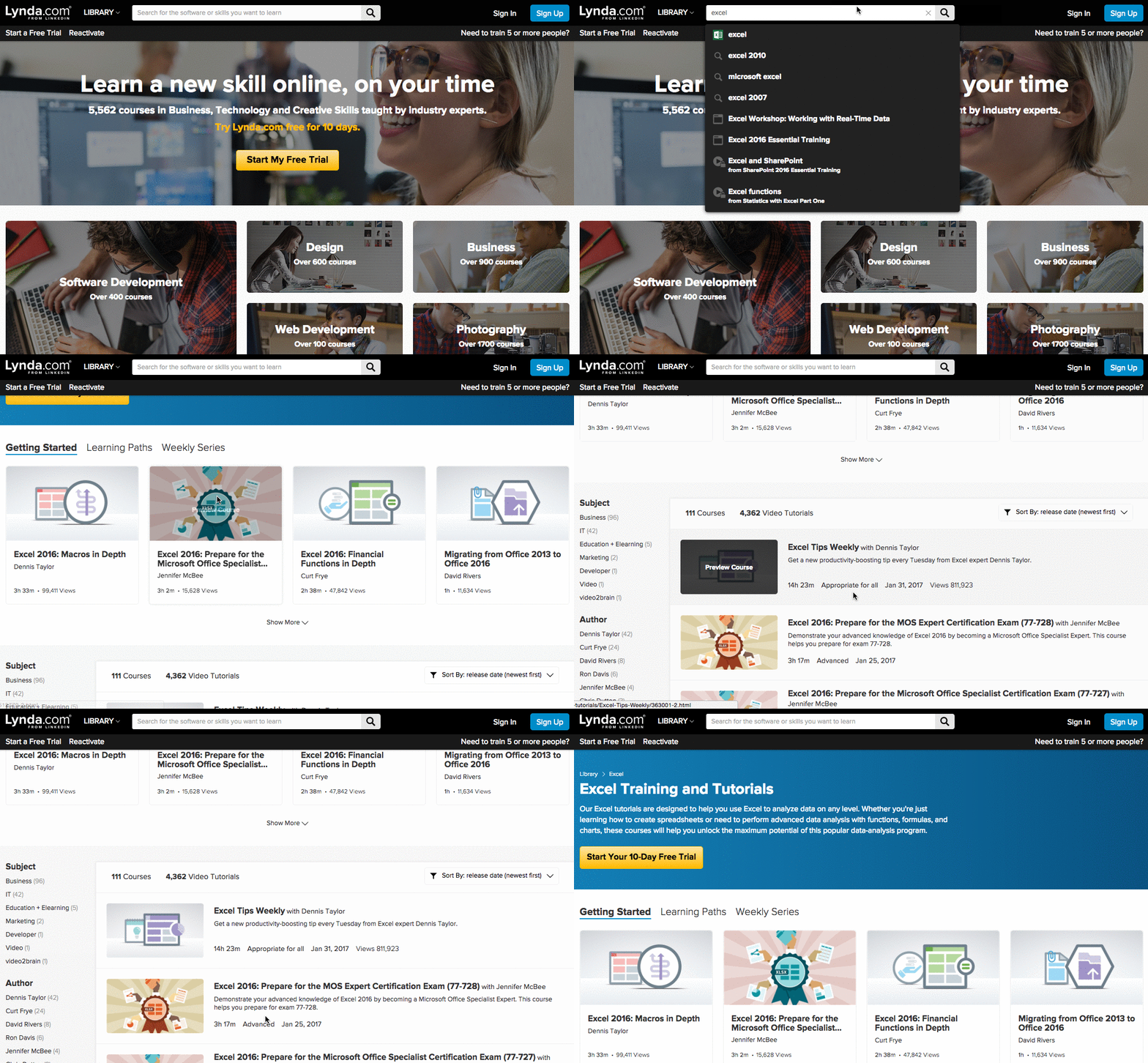
If you're willing to invest a little cash in your Excel training, Lynda's Excel Training and Tutorials are a worthwhile place to spend it. Members of this LinkedIn subsidiary have access to thousands of courses on business, technology, creative skills, and software that'll help you work toward your personal and professional goals.
Included are over 100 courses on Excel, and over 4,000 video tutorials covering every version of the program, at any level of expertise. They cover a broad range of topics, from something as general as "Statistics with Excel Part One," to more niche topics, like "Data Visualization Storytelling Essentials."
11. Coursera
Price: $79/course
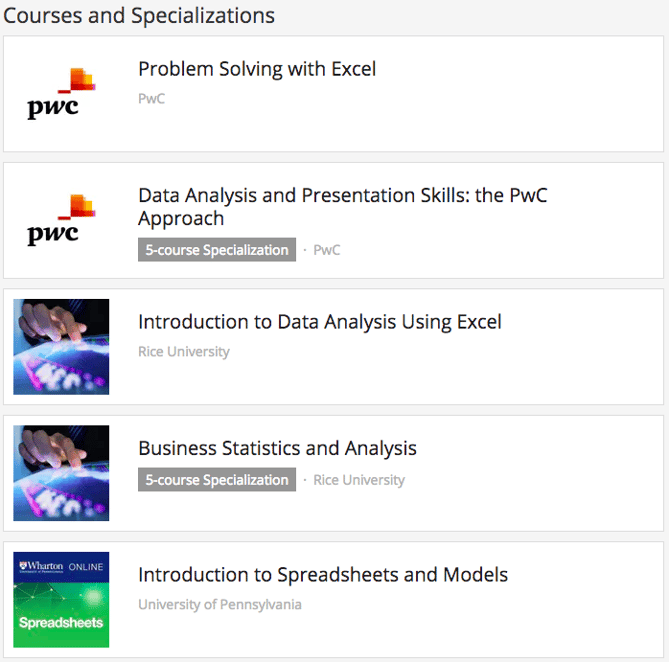
While Lynda.com asks for a monthly all-access membership fee, Coursera charges on a course-to-course basis. Partnering with top universities and organizations worldwide, the site offers online classes on a number of topics, ranging from music production to coaching skills.
There are only a few courses pertaining to Excel, but if you're looking for one that's on a formally academic level, they could be a good fit for you. In fact, many of the Excel-related courses come from Duke University, such as "Excel to MySQL: Analytic Techniques for Business Specialization."
That said, these courses don't come cheap -- after all, they're the same ones that are taught at top universities around the world. And like many real-world classes, each includes video lectures, interactive quizzes, peer-graded assessments, and the opportunity to connect with fellow students and instructors. Once you finish a course, you'll receive formal recognition, along with an optional course certificate.
12. Udemy
Price: $10.99
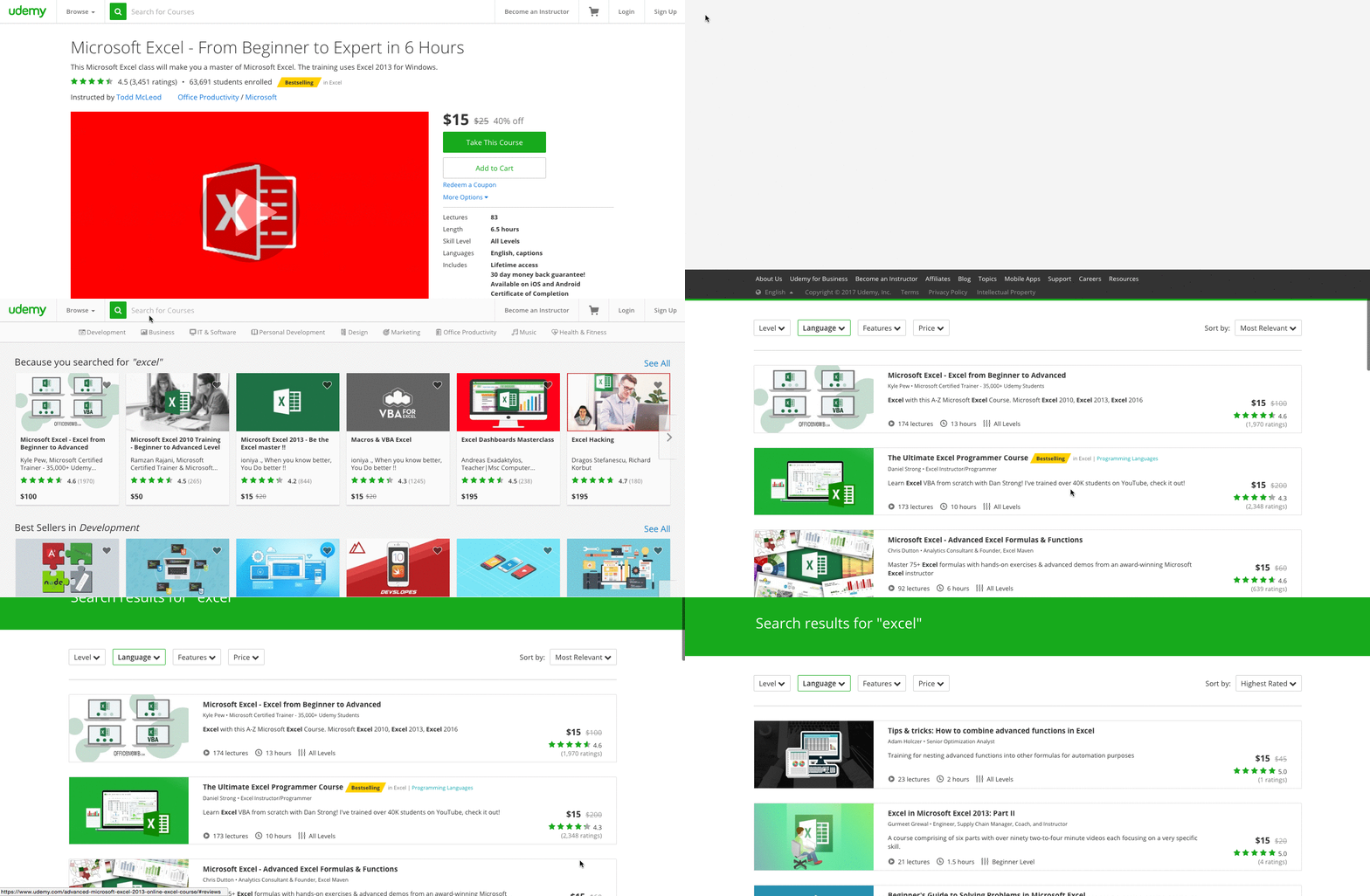
If you had six hours to spare, how would you use them? "Sleep," "clean the house," and "bake something" are some of the things that come to the top of my mind, but try this on for size -- what if you could become an Excel expert in that amount of time?
That's what Udemy promises in its "Microsoft Excel - From Beginner to Expert in 6 Hours" course -- for $10.99. Udemy is one of the most bountiful online learning resources out there, and its Excel courses certainly don't end with that single option. In fact, when I return to the homepage, it displays several additional lessons on the topic, in case I want to explore my options.
Those options are many. In fact, just typing "Excel" into the search bar yields dozens of results, each one displaying a star rating, price, length, and level.
13. Intellezy.com
Price: Free to try | $14.95 mo.
Big believers in microlearning, Intellezy's videos fall in the three- to five-minute range. These nuggets of knowledge are organized into beginner through advanced courses, covering Excel 2007-2016 and Office365. Plus, mobile apps for iOS and Android make it easy to learn on the go.
Intellezy’s videos are really engaging. There’s always an instructor on-screen showing you what to do. And because they’re wired for face-to-face interactions, Intellezy’s instructors really hold your attention. Their courses also include assessments and exercise files so you can see how you’re doing and follow along with the instructor. You can give Intellezy a spin with a free 10-day trial.
14. Excel Everest
Price: $159
The name of this resource may look intimidating, but you'd be surprised how convenient the training is.
Excel Everest is an out-of-the-box resource that teaches you Excel while you're in Excel. The product you buy downloads an Excel file to your computer, where you'll open Excel and engage in walk-throughs of 41 different Excel functions right from a sample spreadsheet. Topics covered include conditional formatting, Vlookup, chart creation, and so much more.
This Excel training resource offers hundreds of exercises, along with video tutorials embedded directly in a sample Excel spreadsheet. By applying these concepts in Excel as you learn them, you'll feel them stick with you long after you complete Excel Everest's training.
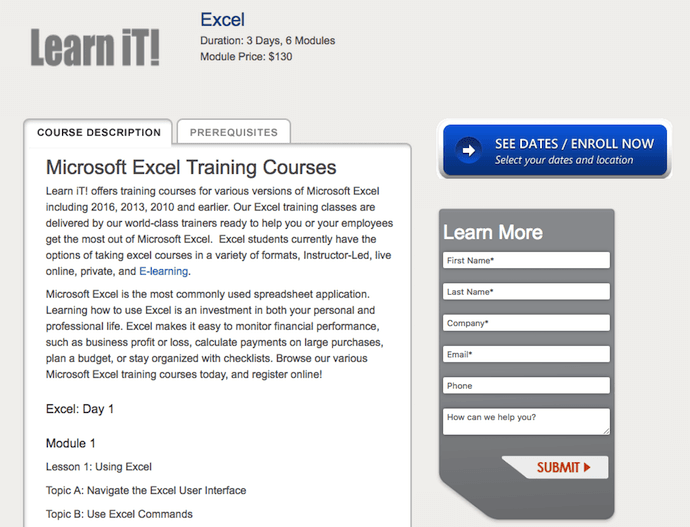
15. Learn iT!
Price: $130/module
Learn iT! offers Excel training in a variety of formats and breaks every lesson down by module. It's the best solution for Excel users who might not be receptive to just a video series or written step-by-step guide.
With Learn iT!, Excel users can select from five different courses: Pivot Tables, Intro to Data Analysis, Programming with VBA, Excel Power User, and a basic Excel course for general users. Each course states the course's duration (in days) and the number of modules the course consists of.
The best part about Learn iT! is that you can take your selected course four different ways: an in-person instructor-led session, live online with classmates, privately in a custom-made session, or a self-paced mix of instructor-led and interactive e-learning courses.
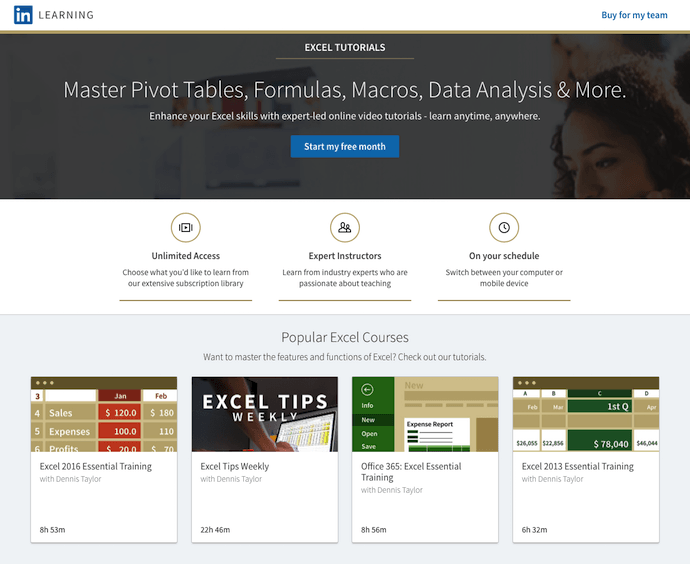
16. LinkedIn Learning Products
Price: Free to try | $29.99 mo.
LinkedIn isn't just for professional networking. You can also learn a ton on various business topics with the help of subject matter experts (SMEs) who host trainings on the LinkedIn Learning platform. Microsoft Excel is one such topic.
Dennis Taylor, a business consultant you can also learn from on Lynda.com, is one SME who hosts Excel training courses on LinkedIn. His courses range from six hours to 23 hours in total training time, and can be completed on your schedule.
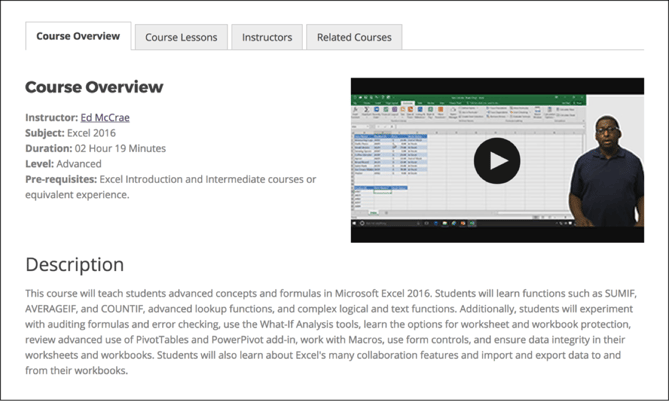
Not only does eLearnExcel give you eight Excel training courses to choose from, but it awards seven Excel certifications as well.
eLearnExcel makes this promise: by taking all of its Excel courses, you'll have a skill in Excel that's greater than 99% of Excel users today. Trusted by Microsoft itself, this suite of training products breaks down Excel's concepts in easy, digestible video modules -- allowing you to learn the Excel concepts that are most relevant to you. Courses range from 45 minutes to six hours in duration.
Seven of these courses award you a certification that corresponds with the course you took. If you complete all seven, you're awarded an Excel Master Diploma. It's not a bad item to put on your resume -- or on your business's website, if multiple employees enroll in eLearnExcel's courses as part of a business subscription.
Excel in Your Field
Ready to get started? With these tools, you'll be using Excel with little-to-no-sweat, in no time. Plus, practice makes perfect -- that's why there are so many tiered levels of courses available. Start where you can, and as you begin using more functions and commands, you can continue to expand your knowledge.
When someone sends me a really great YouTube video, I always want to know who’s behind it. Was it an ad agency? A small or medium business? A B2B tech company? No matter who it was, if I’m impressed, I want to see more from the content creator. So once the video is done, I click the link to visit their profiles.
And from there, if the brand is really on top of its game, I’ll see its channel art -- the horizontal banner displayed across the top of the user’s YouTube channel that, hopefully, shows a combination of good design and brand presence.
But how do they do it?
We’ve all seen design work that inspires us, but can have a bad habit of not taking it any further than that. What makes something like strong YouTube banners so great? And how can you create your own gorgeous artwork? To answer those questions, we found three excellent resources for YouTube banner templates, as well as seven creative channel banners -- both old and new -- that inspire us as marketers.
What Makes a Good YouTube Banner?
Responsive Dimensions
A YouTube channel banner will take on different dimensions depending on what platform is being used to view it. For example, a banner might have different dimensions when viewed on a TV, desktop, or mobile device.
Minimum "safe area" where text and logos are ensured not to be cut off: 1546 x 423 px
Maximum width: 2560 x 423 px
File size: 4MB or smaller
The recommended resolution seems like an exorbitantly large file size. But think about how YouTube banners would appear on a 30" smart TV or higher. With a growing number of options to view YouTube videos in this way, you'll want to make sure your channel art is large enough to display with quality on larger screens.
Here's a helpful visual representation of those dimensions:
Take note of the "safe area" we alluded to in the first section. Your banner is essentially the biggest branding opportunity for when people land on your channel, so you'll want to make sure your logo and supporting text is well-represented in the channel art. That's why it might be best to place your company name and logo in that center space -- this prevents viewer confusion if the name of the company behind the YouTube account is accidentally cut off.
If you're not sure how to take up the entirety of a 2560 x 1440 frame, video production company MiniMatters suggests "build[ing] the image from the middle out," putting the most important assets in the center, and going from there.
Finally, as to what to put in your banner, we like to follow a few basic rules:
Use a high-resolution image. A pixelated or blurry banner doesn't exactly signal that there's high-quality video to follow.
Keep it on-brand. While your channel art doesn't have to be a carbon copy of your logo or tagline, it should incorporate visual elements that you want associated with your brand, like certain colors, fonts, or keywords.
Your banner should represent what your company does in a timely fashion. For example, if you run a bakery and you're gearing up for summer, an eye-catching banner might be a high-res photo of a brightly-colored work surface covered with flour and a rolling pin, along with accompanying text like, "April showers bring May flours."
How to Make a YouTube Banner
"That's just great, Amanda," you might be thinking about these tips. "But where the heck am I supposed to get these beautiful design assets?"
You're in luck -- there are dozens of free resources for creating a great YouTube banner. Here are a few of our favorites:
Google: Why not start with the hosting platform itself? Google has its very own channel art templates to help you get started with your banner design. (Note: Clicking this link will prompt an automatic download of the zip file containing these templates.)
Canva: One of our go-to destinations for DIY design, Canva offers several free YouTube channel art templates that allow you to use your own art, or its library of stock photography.
Fotor: Similar to Canva, Fotor also offers a selection of free YouTube banner templates that allow you to use both your own visual assets or its own library of images.
8 Cool YouTube Channel Art Examples
1. Death Wish Coffee Company
In 2016, Death Wish Coffee was named the winner of a small business marketing competition held by software company Intuit. The reward? A free 30-second commercial during Super Bowl 50. Since then, the self-proclaimed maker of “the world’s strongest coffee” has capitalized on that momentum by making sure its branding stays just as robust.
Its former YouTube banner banner is no exception. It’s straightforward, but also, bold. The company’s logo is displayed as the channel icon, as well as a tiled watermark that doesn’t interfere with the text display. And that message doesn’t leave any doubt about what the brand does. “World’s strongest coffee?” Okay, I’m watching.
2. Adobe Creative Cloud
Seeing as turquoise is my all-time favorite color, there might be a touch of aesthetic bias in our selection of Adobe Creative Cloud’s YouTube banner. But color can have quite an impact in marketing -- shades of blue, for example, have been found to invoke feelings of trust.
This banner doesn’t just make great use of color, though. In a single photo, it connotes creativity and visual quality -- two things that the Adobe Creative Cloud promises with its suite products. The person depicted seems to be creating something remarkable -- an ocean inside of a balloon -- with accompanying text to confirm it: “Make wow.” Plus, to learn more, social buttons are right there within the image.
3. Bon Appétit
Is anyone else hungry? It only seems right that the channel art for a food magazine like Bon Appétit should be, well, appetizing. And with a phrase that’s used as frequently as “bon appétit” -- before a meal or as the title of a pop song -- it’s important that folks who land on this YouTube channel know what they’re getting into.
That’s one thing that makes this banner so great. The branding is clear, from the logo icon to the iconic title text in the center of the image. Plus, the photo itself sends a signal of the type of content visitors can expect to consume -- no pun intended -- when they start watching the channel’s videos: All things food.
4. TauliaInc
One great thing about YouTube banners is that they can be swapped out or modified whenever you want, time permitting. That makes them especially conducive to temporary promotions or campaigns. That’s what tech company Taulia did for “P2P Superheroes”: a campaign that shows how its software can eliminate difficult, time-consuming tasks, helping everyday professionals focus more on the work that matters and turn them into superheroes.
The banner communicates two things: 1. That Taulia is in the business of P2P (“procure to pay”), and 2. the brand really celebrates procurement specialists. And by using original, cartoon-like art, Taulia is turning what could be a dry topic into something fun and engaging.
5. Refinery29
We’re big fans of showcasing the people that make your brand great. That’s one thing that Refinery29 does well, by frequently featuring its writers, editors, and content producers in its videos. As it turns out, they’ve all become quite popular personalities -- which is why the brand put them front-and-center in its channel art.
Creating a banner of this nature is two-fold. First, you have to find a way to incorporate your company’s talent into video content in a way that’s engaging and appealing to your target audience. Here at HubSpot, we have our blog writers, for example, recount important information from blog posts in video and audio summaries. Then, once you’ve produced enough of that media consistently -- and if it’s gaining the right kind of attention -- you can use those personalities to promote your channels.
6. TripAdvisor B2B
TripAdvisor is a resource used by millions of travelers to discover and rate lodgings, restaurants, and much more information about endless destinations. But did you know it also offers B2B services for hotel and other property owners to make the most of their presence on the site?
We like to think of it as a B2B hybrid of review site Yelp and vacation rental site Airbnb. On the one hand, TripAdvisor B2B helps business owners create a profile with photos, descriptions, and other information that’s going to be helpful to travelers. But, like Yelp, it also allows them to monitor and respond to the reviews their businesses receive.
That’s represented in the YouTube banner by portraying what the site is all about -- travel -- but also depicts the act of visitors giving feedback on their experiences by way of rating symbols.
7. Nuvolari Lenard
The thing that stands out to us the most about this banner is its simplicity. It represents a Italian yacht design company Nuvolari Lenard, which is known for work that emulates a luxury and chic lifestyle. And while the channel art itself doesn’t portray anything specifically nautical, the use of capital letters and tiered monochrome does connote a brand that’s high-end.
Those kinds of digital aesthetics create what’s often known as aspirational marketing -- the kind that symbolizes something that’s unattainable by most, but still has a vast following of people “who covet the look and feel of the brand,” as Mediaboom puts it. Can I afford a yacht? Of course not. But seeing something like this makes me want one anyway, and makes me want to consume the video content pertaining to it.
Channel Your Creativity
It’s important to note that really cool YouTube channel art is just one part of a comprehensive video content strategy. It doesn’t matter how beautiful your banner is, for example, if your channel lacks in quality video, or hasn’t added anything new in several weeks.
So, along with great design must come consistency. And as you begin to create both, you can turn to these examples for inspiration.
What are some of your favorite YouTube banners? Let us know in the comments.
from Marketing https://blog.hubspot.com/marketing/best-youtube-banners






 Source:
 Source: